

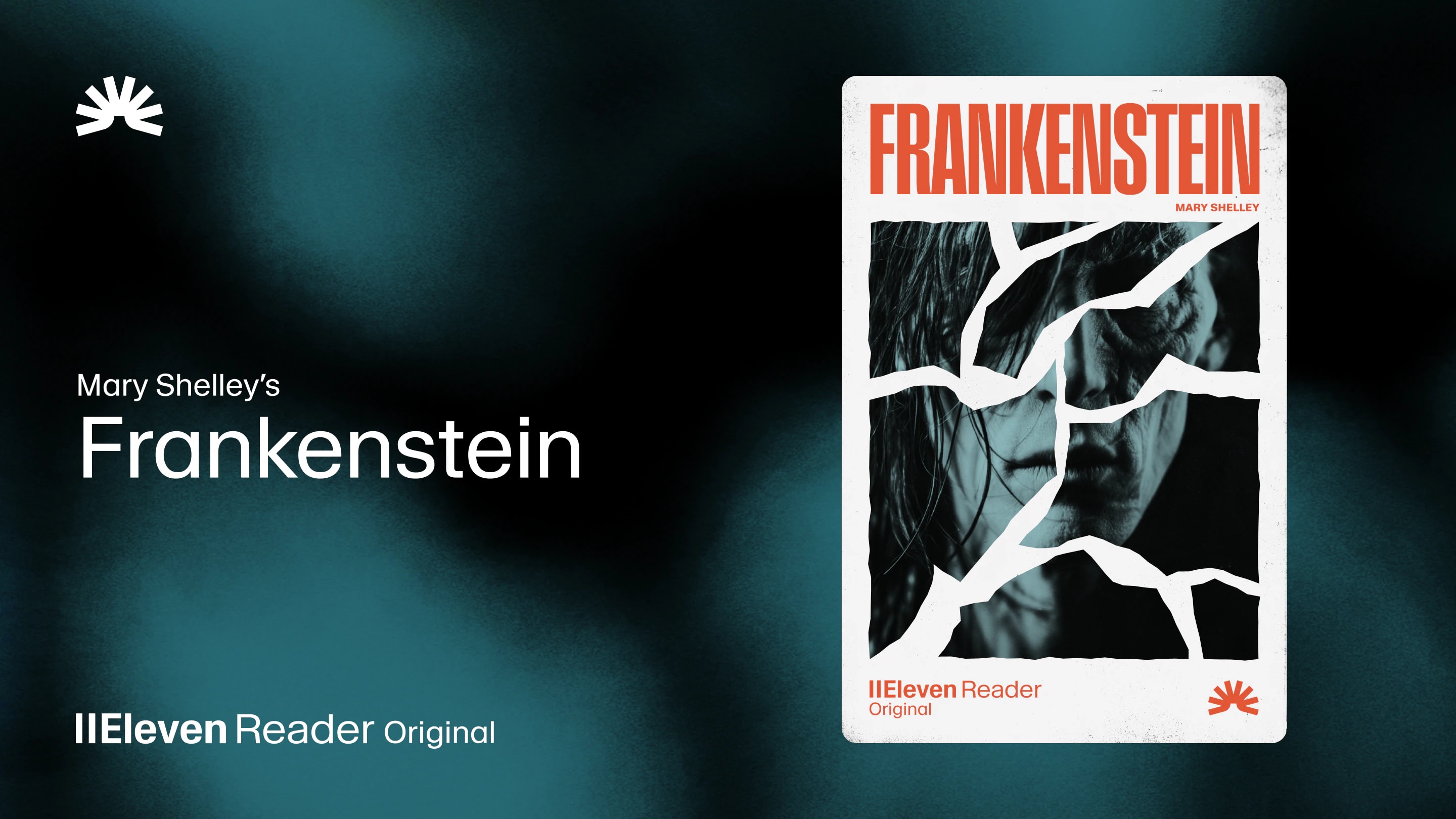
ElevenReader Brings Frankenstein to Life with a Full Cast and Original Score
Frankenstein, the first cinematic audiobook created with Eleven v4, is coming just in time for Halloween
Your first month. Just $1. Start listening for less this month.
Need to listen to a document? Let’s take a look at how to read a PDF out loud on iPhone, Android, Mac, and Windows using built-in tools and AI apps.
By ElevenReader Team
Updated

PDFs are designed to look exactly the same on every screen, which makes them perfect for printing and sharing. However, that rigid structure is also what makes them notoriously difficult to read on a phone, and even harder to listen to.
Until now.
Thanks to modern text-to-speech (TTS) technology, every major operating system now includes built-in tools to convert text to speech, and a new generation of AI-powered apps has made the listening experience genuinely enjoyable.
If you want to get involved with this technology, too, we’ve created this guide with everything you need to know about how to read a PDF out loud on (almost) any device, including iPhone, Android device, Mac, and Windows PC.
Apple devices actually come with some surprisingly powerful accessibility features built right into iOS and iPadOS. These tools were originally designed to help users with visual impairments, but they’re also incredibly handy if you simply want your phone to read a document out loud while you’re commuting, walking, or multitasking.
The easiest way to do this is with a feature called Spoken Content.
To turn it on, open the Settings app, go to Accessibility, and tap Spoken Content. From there, toggle on Speak Screen.
Once it’s enabled, open any PDF on your device. Then swipe down from the top of the screen with two fingers. Your iPhone or iPad will immediately start reading the text on the page. A small control panel will appear on the screen so you can pause, skip ahead, or adjust the reading speed.
Another option is to use the Apple Books app. If you save a PDF to Books, you can open it there and use the same two-finger Speak Screen gesture. The advantage of using Books is that it keeps all your PDFs organized in one place, which is helpful if you regularly work with lots of documents.
That said, Apple’s built-in tools do have a few limitations. While Siri’s voices have improved over the years, they can still sound a bit robotic during longer listening sessions. They also tend to struggle with complicated formatting like charts, footnotes, or multi-column layouts, which are common in many professional PDFs.
Android devices also come with built-in tools that can read text out loud, most of which are powered by Google’s text-to-speech engine.
One of the easiest options is a feature called Select to Speak.
To enable it, open your device Settings, go to Accessibility, and turn on Select to Speak. Once it’s enabled, a small accessibility icon will appear on your screen.
When you open a PDF, tap the accessibility icon and drag your finger across the text you want your phone to read. Android will then read that section out loud. This works well if you only need to hear a paragraph or two, but it can become a bit tedious if you're trying to listen to a long document from start to finish.
For longer PDFs, Google Play Books is usually a better option. You can upload your own PDF files directly to the Play Books app. After opening the document, tap the center of the screen to bring up the menu, tap the three dots in the top-right corner, and select Read Aloud.
The voices from Google’s text-to-speech engine are generally clear and easy to understand. However, like Apple’s built-in voices, they can still sound a bit robotic during long listening sessions. They also tend to struggle with complex formatting like charts, footnotes, or multi-column layouts that often appear in professional PDFs.
If you’re using a Mac, you already have a couple of built-in tools that can read text out loud. macOS includes a full-screen reader called VoiceOver, as well as a simpler feature called Spoken Content.
For most people, Spoken Content is the easier option.
To enable it, open System Settings, go to Accessibility, and select Spoken Content. From there, you can choose the voice you prefer and set a keyboard shortcut for reading highlighted text. The default shortcut is usually Option + Esc.
Once it’s set up, open your PDF in Preview or any other PDF reader. Highlight the section of text you want to hear, then press your shortcut. Your Mac will immediately start reading the selected text out loud.
If you want the entire document read automatically, you can also use VoiceOver. Press Command + F5 to turn it on, and your Mac will begin reading the contents of your screen, including the text inside a PDF.
The catch is that VoiceOver is designed to help users navigate their entire computer. That means in addition to the document text, it also reads interface elements like buttons, menus, and window names. If you’re only trying to listen to the document itself, that extra narration can become super distracting.
If you’re using a Windows computer, there are a few different ways to have a PDF read out loud. Windows includes a built-in screen reader called Narrator, and some apps (like the Microsoft Edge browser) also have their own text-to-speech features.
One of the easiest options is using Microsoft Edge, which is the default PDF viewer on many Windows devices.
To use this tool, all you have to do is open your PDF in Edge and look for the Read Aloud button in the top toolbar. You can also right-click anywhere on the page and select Read Aloud from the menu. Edge will begin reading the document while highlighting each word as it goes. You can pause, skip ahead, change the voice, or adjust the reading speed.
If you want a system-wide tool, you can also use Windows Narrator. Press Windows key + Ctrl + Enter to turn Narrator on. Once it’s active, it will read the text displayed on your screen, including the contents of a PDF.
It’s important to bear in mind that Narrator is designed to help users navigate their entire computer, not just read documents. Because of that, it will also read things like buttons, menus, and other interface elements. So if you only want to listen to the document itself, that extra narration can sometimes get in the way.
Another option is Adobe Acrobat Reader, which is one of the most widely used PDF apps. It includes a feature called Read Out Loud, which you can find under the View menu. This tool uses your computer’s installed voices to read the document page by page or continuously until the end of the file.
TTS and read-aloud technology have come a long way in recent years, especially with the built-in tools offered by major operating systems like iOS and Android. However, once you start using these tools regularly (especially for longer documents), their limitations are obvious.
Here are three of the biggest limitations you’ll notice pretty quickly.
Most built-in tools rely on standard text-to-speech engines. They’re functional, but they hardly ever sound natural.
For example, the voices often lack rhythm and context. They don’t pause naturally at the end of sentences, and they tend to read everything with the same flat tone. For a quick paragraph that might be fine, but listening to a robotic voice for 20 or 30 minutes can be exhausting, and you’ll probably lose focus halfway through.
PDFs are essentially digital paper, which means their layouts can be messy from a text-to-speech perspective.
Many documents include elements like sidebars, charts, footnotes, page numbers, captions, or multi-column layouts. These are easy for a human reader to visually ignore, but built-in screen readers often don’t understand that structure. Instead, they typically read the page in the order the text appears in the file, which isn’t always the order it’s meant to be read.
As a result, everything can get jumbled together. A paragraph might suddenly be interrupted by a chart label, a header from the next column, or a line from the page footer.
Instead of a smooth listening experience, you might hear a sentence broken up by a copyright notice, a random page number, or a caption describing a figure. Over the course of a long document, those interruptions make it much harder to follow the content and stay immersed in what you’re listening to.
Another frustrating limitation is that most built-in tools usually work only on the device you’re currently using.
For example, if you start listening to a PDF on your Mac using Spoken Content, there’s no easy way to continue from the same spot on your iPhone. You have to transfer the file, find your place again, and restart the reading tool.
If you regularly switch between devices, that lack of syncing can make the whole process feel super clunky and unsustainable.
Built-in accessibility tools are useful in a pinch. But they’re not really designed for extended listening.
Thankfully, there are a lot of better tools out there for reading a PDF out loud that are also completely free to use. One example of this is ElevenReader, which was specifically designed to help solve some of the problems that make PDFs difficult to listen to.
Here’s what makes ElevenReader different:
If you’re sick of robotic-sounding screen readers, ElevenReader offers a smarter way to turn your PDFs into audio. Try it for free and see how much better listening to your documents can be.
Yes. If you use a dedicated app like ElevenReader, the audio will continue playing in the background while you use other apps on your phone, check your email, or lock your screen. Some built-in tools, like iOS Speak Screen, also support background playback.
It all depends on the tool. Built-in system voices usually work offline because the voice data is stored on your device. Premium AI apps often require an internet connection to generate high-quality voices, though some offer offline listening features where you can download the audio ahead of time.
Built-in system voices offer limited customization, typically only speed and pitch adjustments. However, to get a truly natural, human-sounding voice, you need to use an app powered by neural AI, such as ElevenReader, which offers hundreds of realistic voices with natural intonation.
In many cases, yes. Basic screen readers often read everything on the page, including headers, footers, and page numbers. That can interrupt the natural flow of the text and make the listening experience feel a bit choppy.
More advanced reading apps are designed to handle this better. Instead of reading every piece of formatting, they focus on extracting the main body text, skipping over things like page numbers or repetitive headers so the audio flows more naturally.
It all depends on the tool you’re using.
Dedicated reading apps (like ElevenReader) usually save your progress automatically, so you can pause a document and come back later without losing your place. Many of them even sync across devices, which means you can start listening on your computer and continue on your phone.
Built-in tools like Mac’s Spoken Content or Windows Narrator, on the other hand, don’t typically remember where you stopped. That means if you close the document, you’ll usually need to find your place again manually before restarting the reader.
Frankenstein, the first cinematic audiobook created with Eleven v4, is coming just in time for Halloween

How to read Google Docs aloud when the Audio option is missing, with built-in Google tools and ElevenReader.