

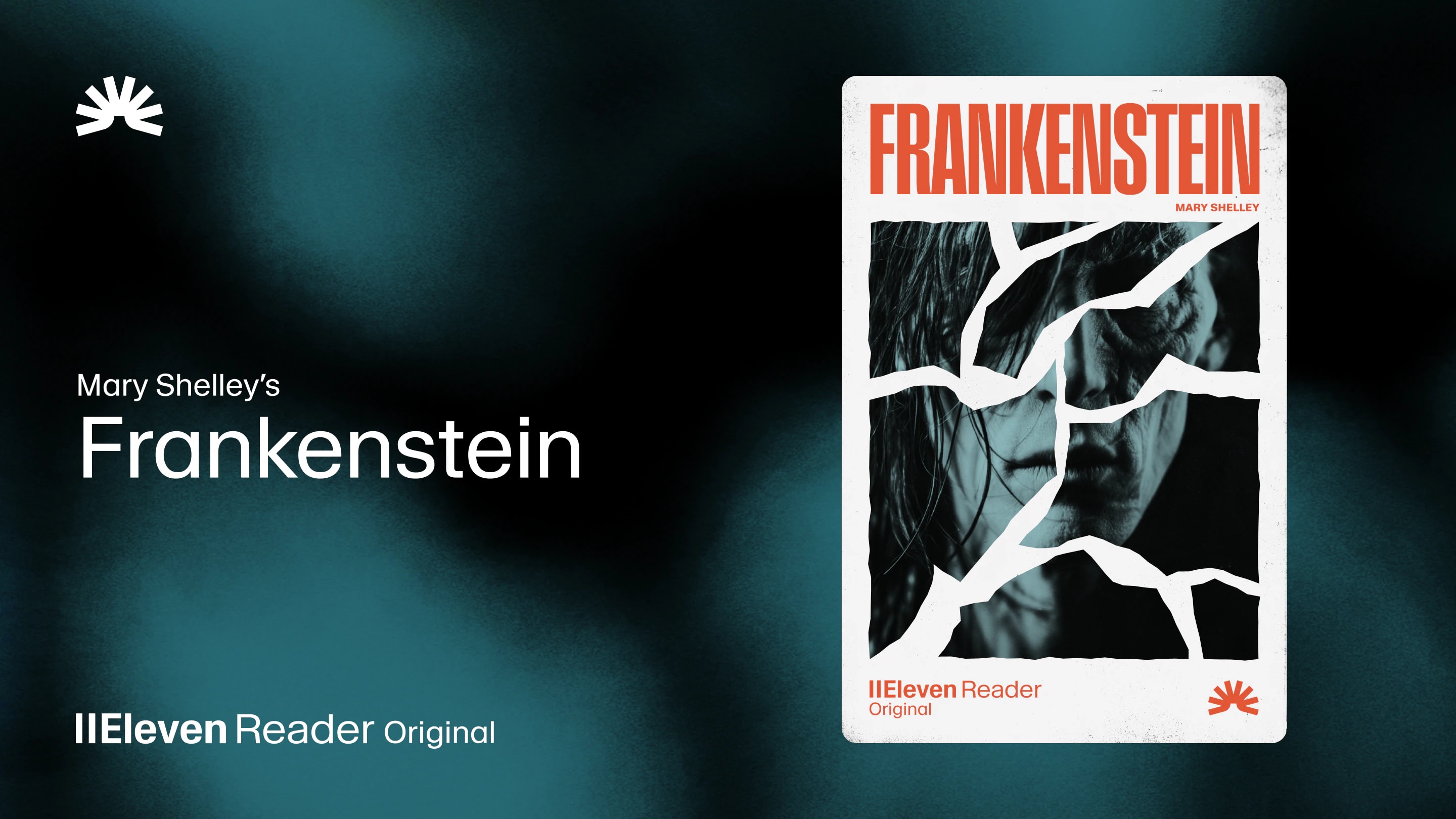
ElevenReader Brings Frankenstein to Life with a Full Cast and Original Score
Frankenstein, the first cinematic audiobook created with Eleven v4, is coming just in time for Halloween
Your first month. Just $1. Start listening for less this month.
Wondering how to get Kindle to read to you? Compare the four main methods, including Assistive Reader, device screen readers, Audible, and ElevenReader.
By ElevenReader Team
Updated

You love getting lost in a good book on your Kindle. What you don't love is spending your evenings looking at yet another screen after a full day of emails and spreadsheets.
At ElevenReader, we feel your pain. So to help, we're sharing four different ways you can get Kindle to read to you. Some options are completely free, some are a bit on the pricey side, and some sound a lot (and we mean a lot) more natural than the others.
Let's get to it!
The easiest way to have a Kindle book read out loud is by using Assistive Reader, Amazon's built-in text-to-speech feature. It's available in the Kindle app on iPhone, iPad, Android, Mac, and Fire tablets.
Assistive Reader uses your device's built-in voice to read the text aloud while highlighting each word on the screen as it goes. This makes it easy to listen and follow along at the same time.
Here's how to start using Assistive Reader in five easy steps:
If you can't find the Assistive Reader option, that usually means the book doesn't support Enhanced Typesetting. In this case, you'll need to use one of the alternative methods below.
On iPhone and iPad, you can use Speak Screen, while Android devices offer Select to Speak. If you're reading on a Kindle e-reader, VoiceView can read supported content aloud through Bluetooth headphones or speakers.
These features are designed first and foremost as accessibility tools, so they use your device's built-in system voice. They're clear and easy to understand, but they don't sound as natural or expressive as modern AI voices you might find in an audiobook app or dedicated text-to-speech app.
It's also worth mentioning that Kindle works with VoiceOver on iPhone and TalkBack on Android. These are full screen readers that can read menus, buttons, and book text, but they also change how you navigate your device. If all you want is to have a page or chapter read aloud, Speak Screen and Select to Speak are usually the simpler, more convenient choice.
On iPhone or iPad, you can set up your screen reader by going to Settings > Accessibility > Read & Speak, then turn on Speak Screen. Next, open your Kindle book and swipe down from the top of the screen with two fingers to start reading. You can then use the playback controls to pause, skip ahead, or adjust the reading speed.
On Android, simply open Settings > Accessibility > Select to Speak, then enable the shortcut. Open your Kindle book, activate the shortcut, and tap the text you want to hear. Just like on iPhone, the on-screen controls will let you play, pause, and change the reading speed.
If you're planning on listening to your book for more than a few minutes, it's definitely worth looking into third-party AI voice readers. Unlike standard system voices, modern AI voices sound more natural, with realistic pacing, expression, and dialogue that make it easier to stay engaged.
One example of this is ElevenReader. Here’s a quick look at how ElevenReader’s voice quality compares to Kindle’s Assistive Reader.
The best part is you can listen to any web content you own or have legitimate access to, including Kindle online. All you have to do is open a supported website in the app's built-in browser, sign in to your account, and start listening.
If you're someone who finds long passages of text difficult to read, a natural voice not only sounds more pleasant, but it can also make it easier to stay focused for longer. This is especially helpful for readers with dyslexia, ADHD, low vision, or screen fatigue.
If you prefer professionally narrated audiobooks, Audible's Read & Listen feature is worth considering. It syncs your reading progress between the Kindle and Audible apps, so you can switch from reading to listening without losing your place.
Because it uses the official audiobook recording, you'll hear a professional narrator rather than a text-to-speech voice. For many readers, that's the gold standard for bringing a story to life.
The main downside is the cost. You'll need access to both the Kindle eBook and the matching Audible audiobook, meaning you have almost double the cost. Plus, not every title supports Read & Listen, so it's worth checking the product page before you buy.
If there's a book you know you'll come back to again and again, it can be a great investment. But if you want to listen to lots of books, buying both the eBook and audiobook for every title can quickly add up.
With four distinct ways to listen, it helps to see how the options stack up against each other. Here's a quick breakdown of the methods available for your Kindle books.
| Method | Voice quality | Works with all Kindle books? | Best for | Things to know |
|---|---|---|---|---|
| Kindle Assistive Reader | Standard system voice | No, only compatible titles | Listening to short passages of supported books inside the Kindle app | Easy to use, but only available for books with Enhanced Typesetting. Can sound robotic |
| Phone or tablet screen reader | Standard system voice | Yes, reads on-screen text | A simple fallback when Assistive Reader isn't available | Can sound robotic, making it less convenient for longer reading sessions. |
| ElevenReader | Natural AI voices | Works with Kindle online and other supported websites you can access | Longer listening sessions and more natural narration | Reads text live from the page rather than creating or storing an audiobook. |
| Audible Read & Listen | Professional human narration | Only supported titles | Readers who want the official audiobook experience | Requires access to both the Kindle eBook and matching Audible audiobook. |
If you came here wondering how to get Kindle to read to you so you can give your eyes a much-needed break, you now have four fantastic options to choose from.
Assistive Reader is perfect for quick, built-in text-to-speech when your book supports it.
Your device's screen reader gives you another free way to listen when Assistive Reader isn't available.
Audible's Read & Listen is a great choice if you want professional narration for books you love.
And last but not least, ElevenReader offers a convenient middle ground with natural AI voices and a generous free plan.
Want to hear the difference for yourself? You can try ElevenReader for free with up to 10 hours of text-to-audio each month. And if you find yourself listening more regularly, the $11/month plan includes unlimited text-to-audio, custom AI narrators, and access to more than 200,000 premium audiobooks.
Whichever method you choose, we hope you find a way to tick as many books as possible off your reading list!
If your book supports it, you can use Assistive Reader in the Kindle app. If it doesn't, you can use your device's built-in screen reader, such as Speak Screen on iPhone or Select to Speak on Android. If you'd prefer more natural-sounding AI voices, apps like ElevenReader can read supported Kindle online content out loud.
Yes, the Kindle app includes a feature called Assistive Reader. It uses your device's text-to-speech engine to read compatible books aloud while highlighting the text on the screen.
Assistive Reader only works with books that support Enhanced Typesetting, and the feature must be enabled for that specific title. If you can't find Assistive Reader, the book you're reading likely doesn't support Enhanced Typesetting.
No. ElevenReader is a live listening feature. It reads the visible text while you view supported web content you already have access to. It does not import, download, copy, store, or create an audio file from your books.
Frankenstein, the first cinematic audiobook created with Eleven v4, is coming just in time for Halloween

How to read Google Docs aloud when the Audio option is missing, with built-in Google tools and ElevenReader.