
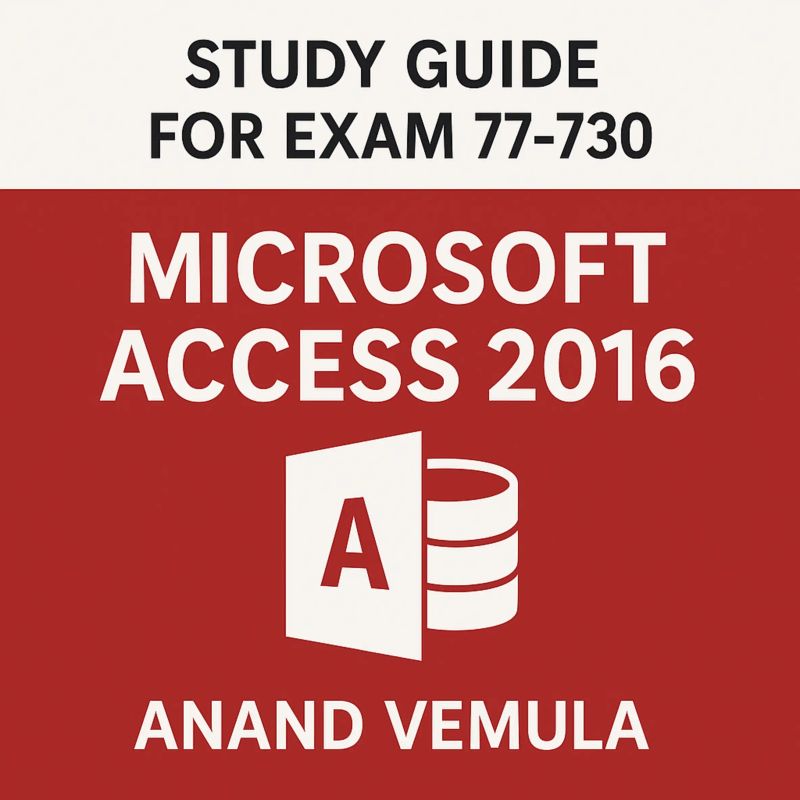
Study Guide for Exam 77-730
Microsoft Access 2016By Anand Vemula


Length3h 6m
About this audiobook
The Study Guide for Exam 77-730: Microsoft Access 2016 is designed to help candidates prepare for the Microsoft Office Specialist (MOS) certification exam. The guide offers a structured approach to mastering the core features and functionalities of Microsoft Access 2016. It focuses on essential topics, including database creation, table design, query formulation, form and report building, and maintaining data integrity.
The guide starts by covering how to create and manage databases, emphasizing database creation from scratch, the use of templates, and establishing relationships between tables. It also covers the application of primary and foreign keys, along with enforcing referential integrity to ensure consistent data.
Building tables is a major section, where candidates learn how to define field data types, use input masks, and apply validation rules to maintain data accuracy. The study guide dives deep into creating and modifying queries, including how to use select, action, and aggregate queries. Techniques for joining tables and using calculated fields are also taught.
Form and report creation are crucial aspects of the exam. The guide demonstrates how to design forms and configure their controls, apply formatting, and set properties for efficient data entry. Similarly, report creation focuses on grouping, sorting, and inserting key elements like charts and page numbers.
The guide also emphasizes maintaining data integrity through validation rules, as well as importing and exporting data to and from external sources like Excel. This study guide equips candidates with the skills needed to confidently sit for and pass the MOS 77-730 exam.
Audiobook details
GenreEducation and Learning, Self-Help
Length3 hrs 6 mins
Narrated byListen with 1,000+ voices
FormateBook with Audio
Publish dateJun 5, 2025
LanguageEnglish
Table of contents
1Study Tips
26How to Enable:
2Steps:
27Cascade Options:
3Key Concepts:
28Use Cases:
4Create a Database from a Template
29Potential Issues Without Referential Integrity:
5Steps:
30Printing Database Objects
Show all chaptersShow less
6Benefits:
31Printing Tables and Queries
7Limitations:
32Printing Forms
8Save a Database in a Specific Format
33Printing Reports
9Formats:
34Page Setup Options
10Saving in a different format:
35Exporting Data
11Exporting Objects (e.g., reports) to PDF:
36Supported Export Formats:
12Create and Modify Relationships
37How to Export Data
13Types of Relationships:
38Export to Excel
14Steps to Create Relationships:
39Export to PDF/XPS
15Best Practices:
40Export to Text or CSV
16Set Primary Keys and Foreign Keys Primary Keys
41Automation Tip:
17Characteristics:
42Navigate Through Records and Objects
18How to Set a Primary Key:
43Navigating Records in Tables, Queries, and Forms
19Composite Keys:
44Navigation Buttons:
20Foreign Keys
45Navigating Database Objects
21Purpose:
46Switching Between Open Objects
22Example:
47Filtering Navigation Pane
23To Create a Foreign Key:
48Compact and Repair a Database
24Enforce Referential Integrity
49Why Compact and Repair?
25What It Does:
50Steps to Compact and Repair:
DP-420 Designing and Implementing Cloud-Native Applications Using Microsoft Azure Cosmos DB Certification Exam GuideAnand Vemula2h 36m$13
DP-500 Designing and Implementing Enterprise-Scale Analytics Solutions Using Microsoft Azure and Microsoft Power BI Exam GuideAnand Vemula2h 8m$13
Study Guide - Microsoft Office Specialist: Word Expert (Microsoft 365 Apps) - MO 111Anand Vemula1h 45m$11
AZ-600 Configuring and Operating a Hybrid Cloud with Microsoft Azure Stack Hub Study GuideAnand Vemula2h 24m$12
Study Guide -Exam 77-727: Microsoft Excel 2016Anand Vemula1h 28m$16
Study Guide -Microsoft Office Specialist Excel Expert (Office 2019) - Exam MO-201Anand Vemula1h 33m$13
Microsoft Office Specialist Excel Expert ( Office 2016 ) Exam 77-728 Study GuideAnand Vemula1h 43m$13
Study Guide MO-500 Certification Exam Microsoft Access Expert ( Office 2019)Anand Vemula2h 36m$16
Study Guide for the Microsoft Office SpecialistAnand Vemula1h 35m$13
Study Guide Microsoft Office Specialist - Excel Associate (Office 2019)Anand Vemula1h 47m$13
Study Guide Microsoft Office Specialist 77-729Anand Vemula1h 39m$12
Introduction to Agentic AIAnand Vemula1h 36m$16
Mastering Agentic AIAnand Vemula1h 37m$14
Study Guide for Microsoft Office Specialist: PowerPoint Associate (Microsoft 365 Apps) MO-310Anand Vemula1h 2m$10

AZ-720 Troubleshooting Microsoft Azure Connectivity Study GuideAnand Vemula2h 1m$12
200-301 CCNA (Cisco Certified Network Associate) Study GuideAnand Vemula2h 47m$16
Study Guide Cisco Certified Design Expert (CCDE 400-007) ExamAnand Vemula2h 19m$13
Study Guide Cisco 300-515 SPVI Implementing Cisco Service Provider VPN Services Certification ExamAnand Vemula1h 15m$13
300-710 SNCF Securing Networks with Cisco Firewalls Study GuideAnand Vemula2h 57m$13
A Brief History of IntelligenceMax S. Bennett12h 18m4.6 (6.6K)$29 · $0.00
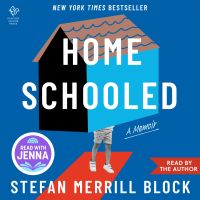
HomeschooledStefan Merrill Block7h 10m3.6 (18.5K)$28 · $0.00
Parents and Children (Annotated)Charlotte Mason9h 23m4.6 (988)$2 · $0.00

Children Under FireJohn Woodrow Cox10h 17m4.5 (1.6K)$29 · $0.00
The State Must ProvideAdam Harris7h 15m4.5 (775)$24 · $0.00
The Call of the Wild and FreeAinsley Arment9h 7m4.4 (21.2K)$29 · $0.00
The Freelance WayRobert Vlach19h 48m4.5 (528)$40 · $0.00
Race to the BottomLuke Rosiak9h 20m4.5 (600)$29 · $0.00

They Came for the SchoolsMike Hixenbaugh9h 5m4.5 (2.6K)$8 · $0.00
Find Me UnafraidKennedy Odede, Jessica Posner11h 11m4.5 (2.7K)$29 · $0.00
Asking for ItKate Harding8h 55m4.4 (5.3K)$20 · $0.00
Defining Moments in Black HistoryDick Gregory7h 37m4.4 (6K)$26 · $0.00
The Emerald Tablets of Thoth the AtlanteanMaurice Doreal3h 4m4.4 (8.8K)$6 · $0.00
Learning AmericaLuma Mufleh6h 37m4.4 (564)$24 · $0.00
Math-ishJo Boaler7h 21m4.4 (588)$24 · $0.00
It Worked For MeColin Powell7h 42m4.3 (9.8K)$26 · $0.00
Little SoldiersLenora Chu11h 30m4.3 (3.1K)$29 · $0.00

Financial FeministTori Dunlap8h 3m4.2 (22.2K)$8 · $0.00
Grammar-land; Or, Grammar in Fun for the Children of Schoolroom-shireM. L. Nesbitt2h 36m4.4 (487)$1 · $0.00
DarkwaterWilliam Edward Burghardt Du Bois6h 40m4.3 (1.4K)$11 · $0.00
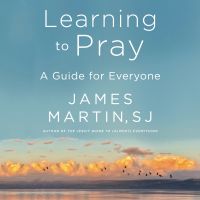
Learning to PrayJames Martin13h 24m4.5 (3.4K)$33 · $0.00

The Dangerous Truth about Today’s MarijuanaLaura Stack CSP, MBA9h 57m4.7 (385)$20 · $0.00
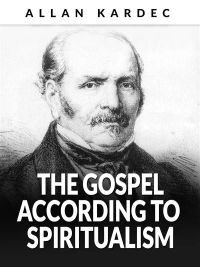
The Gospel according to Spiritualism (Translated)Allan Kardec14h 39m4.6 (3.9K)$5.70 · $0.00
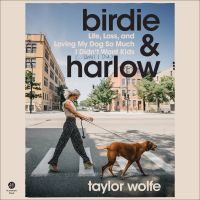
Birdie & HarlowTaylor Wolfe7h 50m4.6 (6.5K)$26 · $0.00
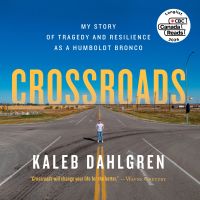
CrossroadsKaleb Dahlgren7h 56m4.6 (4.9K)$26 · $0.00
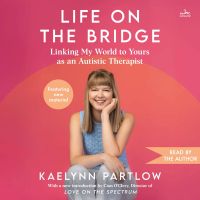
Life on the BridgeKaelynn Partlow5h 40m4.6 (1.1K)$24 · $0.00
Keep Your Love OnDanny Silk9h 4m4.6 (8.1K)$10 · $0.00
The Tao of Joy Every DayDerek Lin10h 24m4.6 (762)$20 · $0.00
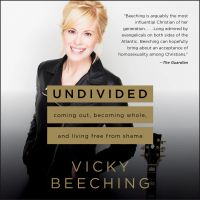
UndividedVicky Beeching9h 2m4.6 (1.3K)$29 · $0.00
HE CAN WHO THINKS HE CAN & OTHER BOOKS ON SUCCESSOrison Swett Marden5h 54m4.6 (1.2K)$1.99 · $0.00
Level UpRob Dial7h 42m4.6 (3.3K)$26 · $0.00
Burn the HaystackJennie Young, PhD9h 30m4.6 (543)$29 · $0.00
ACRES OF DIAMONDS: Our Every-day Opportunities (Wisdom & Empowerment Series) (Annotated)Russell Conwell2h 26m4.6 (1K)$2 · $0.00
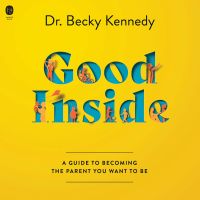
Good InsideBecky Kennedy9h 55m4.5 (59.3K)$29 · $0.00
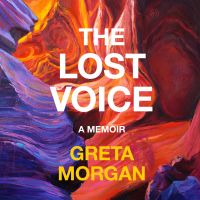
The Lost VoiceGreta Morgan8h 30m4.7 (285)$26 · $0.00
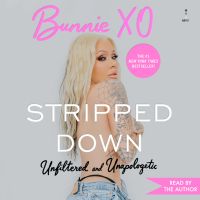
Stripped DownBunnie Xo8h 25m4.5 (32.9K)$26 · $0.00
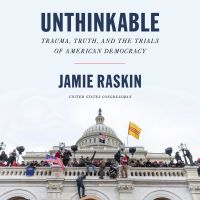
UnthinkableJamie Raskin15h 8m4.5 (9.3K)$8 · $0.00
Wallace D. Wattles Ultimate Collection Wallace D. Wattles16h 53m4.6 (1.3K)$1 · $0.00
Inquire WithinIn-Q2h 18m4.6 (993)$16 · $0.00
Under His WingsEmily Compagno7h 16m4.6 (848)$22 · $0.00
You may also like
Rapid Russian, Vols. 1 & 2Earworms Learning2h 15m4.6 (88)$20
I Saw the LightBill Brown Jr.30m4.8 (12)$4
Rapid Japanese, Vol. 1Earworms Learning1h 12m4.1 (121)$15
SupernaturalBill Brown Jr.58m4.8 (11)$5
By The Grace of GodBill Brown Jr.1h 25m4.8 (10)$10
Rapid Turkish, Vol. 1Earworms Learning1h 9m4.1 (37)$15
Canon in DBill Brown Jr.2h 20m4.2 (18)$10
Bad Moon RisingBill Brown Jr.28m4.0 (26)$2
Latin for BeginnersBenjamin L. D'Ooge12h 38m3.5 (68)$2 · $0.00
Minuet in G no. 7Bill Brown Jr.29m$2
Route 66Bill Brown Jr.1h 5m$10
The Church's One FoundationBill Brown Jr.13m$1
Great is Thy FaithfulnessBill Brown Jr.1h 22m$10
The Big Sewing BookEva-Maria Heller2h 17m$5 · $0.00
Rapid Spanish (Latin American), Vol. 1Earworms Learning1h 7m3.9 (18)$15
A Short History Of ArchitectureArthur Lyman Tuckerman4h 30m$2.40
1000 essential words in UkrainianJM Gardner2h 36m$10 · $0.00
Brick HouseBill Brown Jr.39m$4
Flip and Flap know the seaSilvia Strufaldi3m$3 · $0.00
Hints to Young Yacht SkippersThomas Fleming Day1h 42m$2 · $0.00