
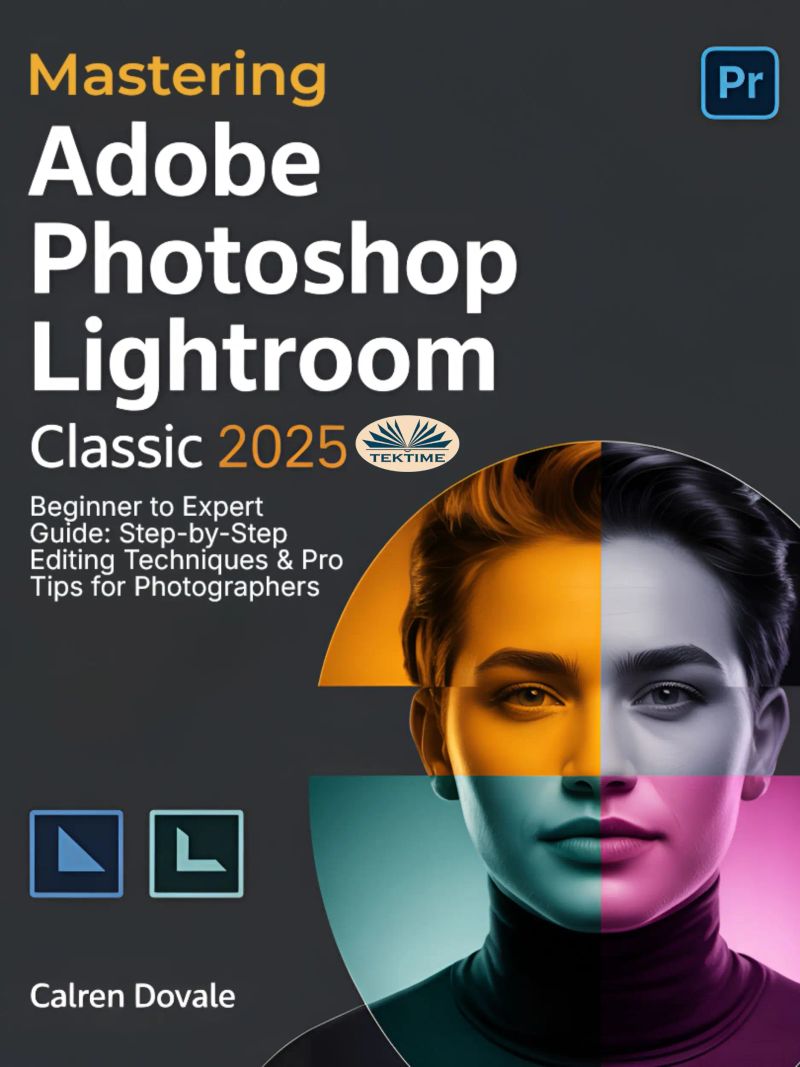
Mastering Adobe Photoshop Lightroom Classic 2025
By Calren Dovale


Length5h 30m
About this audiobook
Take your photo editing skills to the next level with this Adobe Lightroom Classic 2025 guide, the ultimate book for photographers of all levels. This book covers everything you need to know about the latest version of Lightroom Classic 2025 in a simple, practical, and easy-to-follow way.
This guidebook walks you through every essential tool, feature, and workflow enhancement, ensuring you get the most out of Lightroom Classic 2025. Learn how to organize your images efficiently, perfect your edits using advanced tools, and streamline your process with powerful AI-driven enhancements. With step-by-step explanations, real-world examples, and expert tips, you’ll gain the confidence to edit your photos like a pro.
Do your photo edits fall short of your creative vision—despite spending hours inside Lightroom? Are you frustrated by complex tools, inconsistent results, or feeling left behind by Adobe's 2025 updates?
You’re not alone. Many photographers—from passionate hobbyists to seasoned professionals—struggle to fully harness Adobe Lightroom Classic's powerful features. The learning curve is steep. The updates are frequent. The interface keeps evolving. But what if you had a clear, proven roadmap to take control of your editing process and create jaw-dropping images with confidence?
Mastering Adobe Photoshop Lightroom Classic 2025: Beginner to Expert Guide is your ultimate all-in-one handbook, designed to transform the way you edit, organize, and showcase your photos. Whether you’re just starting out or looking to sharpen your advanced skills, this book takes you step by step through every essential tool, feature, and workflow in Lightroom Classic 2025—explained in plain, practical language you can actually use.
Unlike dry manuals or scattered tutorials, this guide is built for real photographers with real goals: stronger edits, faster workflows, and more professional results. From understanding the latest AI enhancements to mastering advanced techniques like masking, color grading, and RAW processing, this book gives you a solid foundation—and the expert strategies to go beyond.
Inside, you’ll learn:
A complete walkthrough of Lightroom Classic 2025’s redesigned interface and smart new tools
How to efficiently import, organize, and manage your entire photo library
Powerful editing techniques to bring out stunning color, sharpness, and mood in any image
How to use presets, batch editing, and AI to speed up your workflow and stay consistent
Exporting secrets to ensure your photos look their best online, in print, or for clients
Designed for creatives, content creators, and photographers of all levels, this guide removes the guesswork and gives you the skills to elevate every image you touch. Whether you're building a portfolio, editing travel memories, or delivering client work, this book equips you with everything you need to make Lightroom Classic 2025 work for you—not the other way around.
Stop wasting time in frustration and start editing like a pro.
Buy your copy of Mastering Adobe Photoshop Lightroom Classic 2025 today and turn your photos into works of art.
Audiobook details
GenreTechnology, Science and Nature
Length5 hrs 30 mins
Narrated byListen with 1,000+ voices
FormateBook with Audio
Publish dateJul 10, 2025
LanguageEnglish
Table of contents
1New Features in 2025
2Lightroom Classic vs. Lightroom CC: Key Differences
3INSTALLATION AND SETUP
4System Requirements
5Downloading and Installing Lightroom Classic
Show all chaptersShow less
6Interface Walkthrough
7Modules Overview
8Interface Layout
9Understanding the Catalog System
10What is the Lightroom Classic Catalog?
11What Other Benefits Does Using a Catalog Have?
12Where is My Lightroom Classic Catalog?
13Three More Things You Should Know About the Lightroom Classic Catalog
14Managing Lightroom Classic Catalog Backups
15CHAPTER 2
16IMPORTING PHOTOS
17How to Import Photos in Lightroom
18Additional Import Settings Explained In Lightroom
19The File Handling Panel
20The File Renaming Panel
21The Apply During Import Panel
22The Destination Panel
23What to Do When Your Photos Are Greyed Out?: How to Import Photos Faster Into Lightroom Classic
24What is an Embedded & Sidecar Preview?: How to Import Photos Faster
25Editing (Culling) Your Photo Files: The final step
26Trade-Offs With This Import Workflow
27Organizing Images in Folders and Collections
28Using Folders for Physical Organization
29Using Collections for Virtual Organization
30Creating Collections
31Removing Images from Collections
32Create Collections and Collection Sets from Folders
33Importing and Syncing Photos with Adobe Cloud
34THE LIBRARY MODULE
35Overview of the Library Module: Library Module View Modes
36Tour of Lightroom Classic Library Module Layout: How to set up your toolbar
37Black Bar above the Images
38Image Thumbnails in the Film Strip
39Left Panel of the Lightroom Library Module: Right Panel of the Lightroom Library Module
40Configure the Library Module to Suit You
41Essential Keyboard Shortcuts for Working in the Library Module
42THE DEVELOP MODULE
43Introduction to the Develop Module
44Develop Module Left Sidebar
45Develop Module Right Sidebar
46Detail Panel: Sharpening
47Sharpening Settings
48The Option/Alt Key
49Zoom and Noise Reduction
50Denoise or Manual Noise Reduction?
More from Calren Dovale

Operation PedestalMax Hastings12h 29m4.4 (5.2K)$29 · $0.00

When the Heavens Went on SaleAshlee Vance18h 20m4.4 (3K)$40 · $0.00

Everybody Has a Podcast (Except You)Justin McElroy, Travis McElroy, Griffin McElroy5h 9m4.3 (2.3K)$24 · $0.00

Hands of TimeRebecca Struthers8h 8m4.4 (1.3K)$26 · $0.00
Never Lost AgainBill Kilday10h 1m4.4 (805)$29 · $0.00

How the Internet HappenedBrian McCullough13h 28m4.3 (2.7K)$23 · $0.00

Collected Writings of Nikola TeslaNikola Tesla, Thomas Commerford Martin21h 50m4.3 (1.7K)$1 · $0.00
Just AspireAjai Chowdhry9h 13m4.4 (260)$29 · $0.00

The Little Book of AliensAdam Frank8h 20m4.3 (1.3K)$26 · $0.00
The inventions, researches and writings of Nikola Tesla (Annotated)Thomas Commerford Martin16h 59m4.3 (1.3K)$2 · $0.00

KargilV.P. Malik15h 18m4.3 (2K)$24 · $0.00

Experiments with Alternating CurrentsNikola Tesla9h 6m4.3 (874)$1 · $0.00

Fire on the HorizonTom Shroder, John Konrad8h 23m4.3 (858)$26 · $0.00

The Smell of Kerosene (Annotated)National Aeronautics and Space Administration, Donald L. Mallick, Peter W. Merlin11h 32m4.3 (523)$2 · $0.00

The Boy Who Harnessed the WindWilliam Kamkwamba, Bryan Mealer10h 5m4.2 (78.9K)$29 · $0.00

Across the Airless WildsEarl Swift10h 8m4.3 (1.3K)$29 · $0.00

Console WarsBlake J. Harris20h 41m4.2 (13.7K)$46 · $0.00

Improvised Munitions HandbookU.S. Department of Defense4h 49m4.3 (1.6K)$1.99 · $0.00
Escaping GravityLori Garver10h 54m4.2 (2.2K)$20 · $0.00

Wireless WarsJonathan Pelson8h 2m4.3 (418)$20 · $0.00

A Brief History of IntelligenceMax S. Bennett12h 18m4.6 (6.6K)$29 · $0.00
The Story of BirdsSteve Brusatte11h 49m4.6 (401)$29 · $0.00

LiftoffEric Berger9h 4m4.6 (9.5K)$29 · $0.00

Black Earth WisdomLeah Penniman11h 54m4.6 (577)$8 · $0.00

Total Cat MojoJackson Galaxy10h 13m4.5 (8.4K)$23 · $0.00

My Life Among the UnderdogsTia Torres5h 51m4.5 (4K)$24 · $0.00

What It Takes to Save a LifeKwane Stewart6h4.6 (556)$24 · $0.00

Pastoral SongJames Rebanks8h 35m4.5 (12K)$26 · $0.00

How Stella Learned to TalkChristina Hunger7h4.5 (10.9K)$24 · $0.00

Craig & FredCraig Grossi8h 6m4.5 (9.6K)$26 · $0.00

Celebrating BirdsNatalia Rojas, Ana Maria Martinez6h 47m4.6 (330)$24 · $0.00

Saving JemimaJulie Zickefoose4h 59m4.5 (749)$20 · $0.00

Will's Red CoatTom Ryan8h 23m4.5 (2.3K)$26 · $0.00

Of Time and TurtlesSy Montgomery10h 34m4.5 (5K)$29 · $0.00

Zen and the Art of Saving the PlanetThich Nhat Hanh9h 20m4.5 (3.9K)$29 · $0.00

Bottle of LiesKatherine Eban14h 25m4.4 (12K)$33 · $0.00
IngrainedCallum Robinson8h 10m4.5 (1.1K)$26 · $0.00

The Lion Tracker's Guide To LifeBoyd Varty3h 1m4.4 (4.8K)$18 · $0.00

Born for LoveBruce D. Perry, Maia Szalavitz11h 42m4.4 (4K)$29 · $0.00

The Mountains of California (With Original Drawings & Photographs) (Annotated)John Muir11h 35m4.5 (1.1K)$2 · $0.00
You may also like

Google ItAnna Crowley Redding4h 18m4.0 (711)$15

Day Trading AttentionGary Vaynerchuk8h 25m4.3 (1.8K)$28 · $0.00

12 BytesJeanette Winterson9h4.0 (2.5K)$20

Reengineering the CorporationMichael Hammer, James Champy1h 29m3.8 (7.3K)$16 · $0.00

ITIL Foundation Essentials ITIL 4 Edition - The ultimate revision guide, second editionClaire Agutter1h 12m4.2 (462)$27 · $0.00
Self-Publish & SucceedJulie Broad6h 58m4.7 (302)$14.99 · $0.00

Business-Englisch lernen Audio - Eine kraftvolle PräsentationMelita Cameron-Wood58m$17

The future of BlockchainUnknown Author1h 2m$17 · $0.00

Polyglotpython:Jimmy L. De Mello1h 41m$30 · $0.00

Social Media Marketing BoostFernando Moreira0m1.0 (1)$7 · $0.00

The Start-up Founder's Guide to Digital MarketingPramod Maloo8h 17m4.6 (27)$20 · $0.00

Building The Impossible Ndis GuideLenard St5h 6m$58 · $0.00
ISO/IEC 38500: A pocket guide, second editionAlan Calder46m$14 · $0.00

The Definitive Guide To The World's Leading Artificial IntelligenceKael Novera6h 51m$8 · $0.00
The New Roaring TwentiesPaul Zane Pilzer8h 40m4.2 (25)$20 · $0.00
Master Prompt EngineeringRui Jorge Claro2h 53m$10 · $0.00

Introduction manual to S&OPCristina Peña1h 34m4.4 (15)$23 · $0.00

The Evolution of Technologythe Speech Resource Company9h 30m$20

Chatgpt Complete GuideJoaquin Gener1h 23m$6 · $0.00

The AI Culture BlueprintSagar Pandya1h 30m$2 · $0.00