
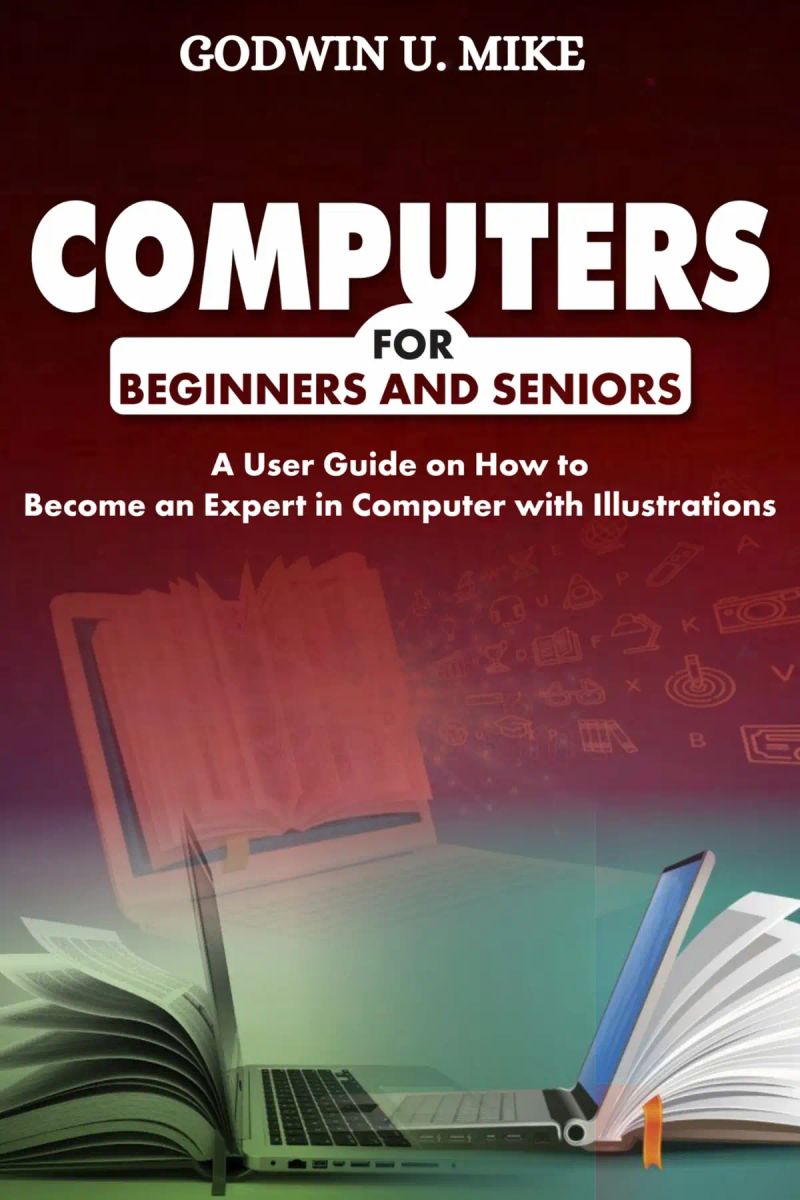
COMPUTERS FOR BEGINNERS AND SENIORS
A User Guide on How to Become an Expert in Computer with IllustrationsBy Godwin U. Mike


Length2h 23m
About this audiobook
Computer as a great machine has many applications in our world. This book starts from ground zero to teach you on how you can use a computer. It is written in a way that you can learn the use of computer easily. If you got a new job or hoping to get a job where the use of computer applies, this book will help you to be up and running.
The book is written with illustrations from a computer running the latest Windows Operating System, Windows 11. It goes further to explain how to use the major Office apps, Microsoft Word and Excel.
Some of the areas covered in this book are:
Fundamental knowledge on computer
What an operating system is
Computer keyboard keys
How to give internet access to computers
Apps and adding them to favorite folder
Web browsers and completing some tasks with them
Emails and communications
Microsoft Word
Microsoft Excel, and more.
Kindly make a purchase and learn about computer literacy in steps.
Audiobook details
GenreTechnology
Length2 hrs 23 mins
Narrated byListen with 1,000+ voices
FormateBook with Audio
Publish dateJul 29, 2026
LanguageEnglish
Table of contents
1COPYRIGHT
2CHAPTER 1
3INRODUCTION TO COMPUTERS
4What is Operating System?
5Windows Computers You can Buy
Show all chaptersShow less
6Computer Terminology
7Common Windows Computers
8How to Setup Your Computer
9CHAPTER 2
10LEARNING THE BASICS
11Mastering Your Computer Keyboard
12Connecting Your PC to the Internet
13How to Connect Your Computer to the Internet Using Wi-Fi
14Connecting Your Computer to Internet Through USB Tethering
15How to Connect Your Computer to the Internet Using Modem
16The Desktop of a Windows Computer: Creating Folders on the Desktop of a Computer
17Working with Applications
18How to Access Apps Installed on Your Computer
19Getting New Apps in Your Computer
20CHAPTER 3
21COMPLETING MORE TASKS IN COMPUTER
22Apps at the Taskbar by Default
23Pinning Apps to the Taskbar
24The Basic Folders
25How to Create Subfolders inside a Main Folder
26Copy, Paste and Cut
27Adjusting Computer Screen Brightness, Flight Mode, Night Light, Battery, Keyboard Layout, Accessibility and Volume
28Screen Brightness, Volume, and Focus Assist in Windows 10 Computers
29Surfing the Internet with Web Browser
30Accessing the History in a Web Browser
31How to Add a Website to Bookmark
32Pinning a Web Page to the Taskbar of Your Computer
33How to Share a Web Page with Others
34How to Print a Webpage
35Accessing the Settings of Your Web Browser
36The Use of Email
37How to Signup for a New Email Address
38How to Communicate with Your Email Address
39Things to Know After Creating an Email Account
40How to Change a Computer’s Name
41CHAPTER 4
42MICROSOFT WORD USER GUIDE
43Launching Microsoft Word
44Working Smart in Your Document
45Making Text Bold
46Capitalizing Words in a Word Document
47How to Insert Pictures in Word: How to Resize Pictures
48How to Underline Words
49Finding Out the Words Count in a Document
50Changing Font Styles in Document
More from Godwin U. Mike


Hands of TimeRebecca Struthers8h 8m4.4 (1.3K)$26 · $0.00
Never Lost AgainBill Kilday10h 1m4.4 (805)$29 · $0.00
How the Internet HappenedBrian McCullough13h 28m4.3 (2.7K)$23 · $0.00

Collected Writings of Nikola TeslaNikola Tesla, Thomas Commerford Martin21h 50m4.3 (1.7K)$1 · $0.00

Just AspireAjai Chowdhry9h 13m4.4 (260)$29 · $0.00

The Little Book of AliensAdam Frank8h 20m4.3 (1.3K)$26 · $0.00
The inventions, researches and writings of Nikola Tesla (Annotated)Thomas Commerford Martin16h 59m4.3 (1.3K)$2 · $0.00

KargilV.P. Malik15h 18m4.3 (2K)$24 · $0.00
Experiments with Alternating CurrentsNikola Tesla9h 6m4.3 (874)$1 · $0.00

Fire on the HorizonTom Shroder, John Konrad8h 23m4.3 (858)$26 · $0.00

The Smell of Kerosene (Annotated)National Aeronautics and Space Administration, Donald L. Mallick, Peter W. Merlin11h 32m4.3 (523)$2 · $0.00

The Boy Who Harnessed the WindWilliam Kamkwamba, Bryan Mealer10h 5m4.2 (78.9K)$29 · $0.00

Across the Airless WildsEarl Swift10h 8m4.3 (1.3K)$29 · $0.00

Console WarsBlake J. Harris20h 41m4.2 (13.7K)$46 · $0.00

Improvised Munitions HandbookU.S. Department of Defense4h 49m4.3 (1.6K)$1.99 · $0.00
Escaping GravityLori Garver10h 54m4.2 (2.2K)$20 · $0.00

Wireless WarsJonathan Pelson8h 2m4.3 (418)$20 · $0.00

Let There Be WaterSeth M. Siegel8h 36m4.2 (2.3K)$20 · $0.00

The PerfectionistsSimon Winchester11h 46m4.2 (9.9K)$29 · $0.00

Rethinking NarcissismDr. Craig Malkin6h 7m4.2 (3.4K)$24 · $0.00
You may also like
The Effective ExecutivePeter F. Drucker6h 16m4.2 (47.2K)$7 · $0.00

HolinessJ. C. Ryle15h 10m4.5 (10K)$30

Fancy Nancy: Aspiring ArtistJane O'Connor11m4.3 (1K)$4 · $0.00
Louder Than WordsJoe Navarro, Toni Sciarra Poynter6h 49m4.1 (1.9K)$24 · $0.00
Hands of TimeRebecca Struthers8h 8m4.4 (1.3K)$26 · $0.00
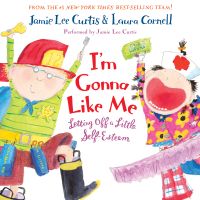
I'm Gonna Like MeJamie Lee Curtis5m4.3 (1.6K)$4 · $0.00

Vibrate Higher DailyLalah Delia4h 2m4.0 (4.9K)$20 · $0.00
The Artist's Guide to Grant WritingGigi Rosenberg5h 39m4.3 (269)Free

The Inner SecretWilliam Walker Atkinson4h 32m4.3 (264)$2 · $0.00
Moral Theology (Annotated)Charles J. Callan, John A. McHugh62h 32m$3 · $0.00

I Am SatyaWalter Berger9m$2 · $0.00

Business-Englisch lernen Audio Sonderedition - TelefonierenMaja Sirola, Spotlight Verlag1h 2m4.5 (11)$20

In Fashions: for Him, for Her, in Knits, in CrochetsAmerican Thread Company1h 7m$2 · $0.00

The L-wordAastha Atray Banan3h 5m4.1 (184)$18 · $0.00

ColorindoGabriel Bruno0m$6 · $0.00

ColorindoGabriel Bruno0m$7 · $0.00

Aussprachetraining EnglischRobert Kirstein, Langenscheidt Redaktion2h 9m$15 · $0.00

Mystics of the RenaissanceRudolf Steiner4h 17m4.1 (111)$1.20 · $0.00

Courage for TodayAnn White12h 55m$10 · $0.00

A Catechism and Confession of FaithRobert Barclay4h 34m4.3 (84)$1 · $0.00